
AI doesn't have to circumvent learning, it can compliment it. Here's a good sample project introducing Adobe Illustrator that can't be easily done by dumping a prompt into a AI tool.
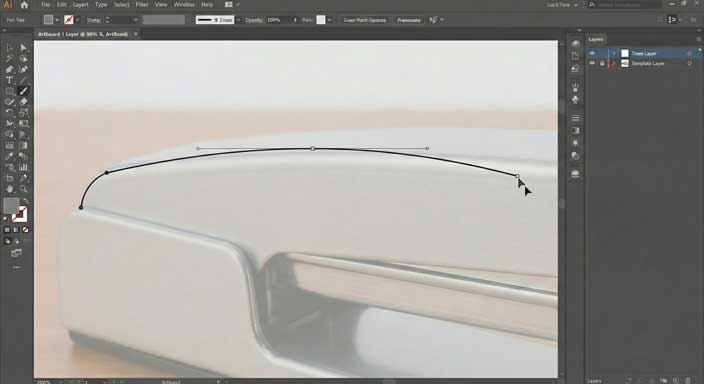
The "exploded" Technical Schematic
Duration: 2 Weeks Software: Adobe Illustrator Core Skills: The Pen Tool, Bézier Curves, Stroke Weight, Pathfinder, Layers.
1. The Concept
Instead of asking students to "draw a cartoon" (which AI does easily), we task them with creating a Technical Instruction Manual graphic for a common household object. This requires precision, simplification, and adherence to a strict visual system—skills required for high-paying jobs in packaging and technical design.
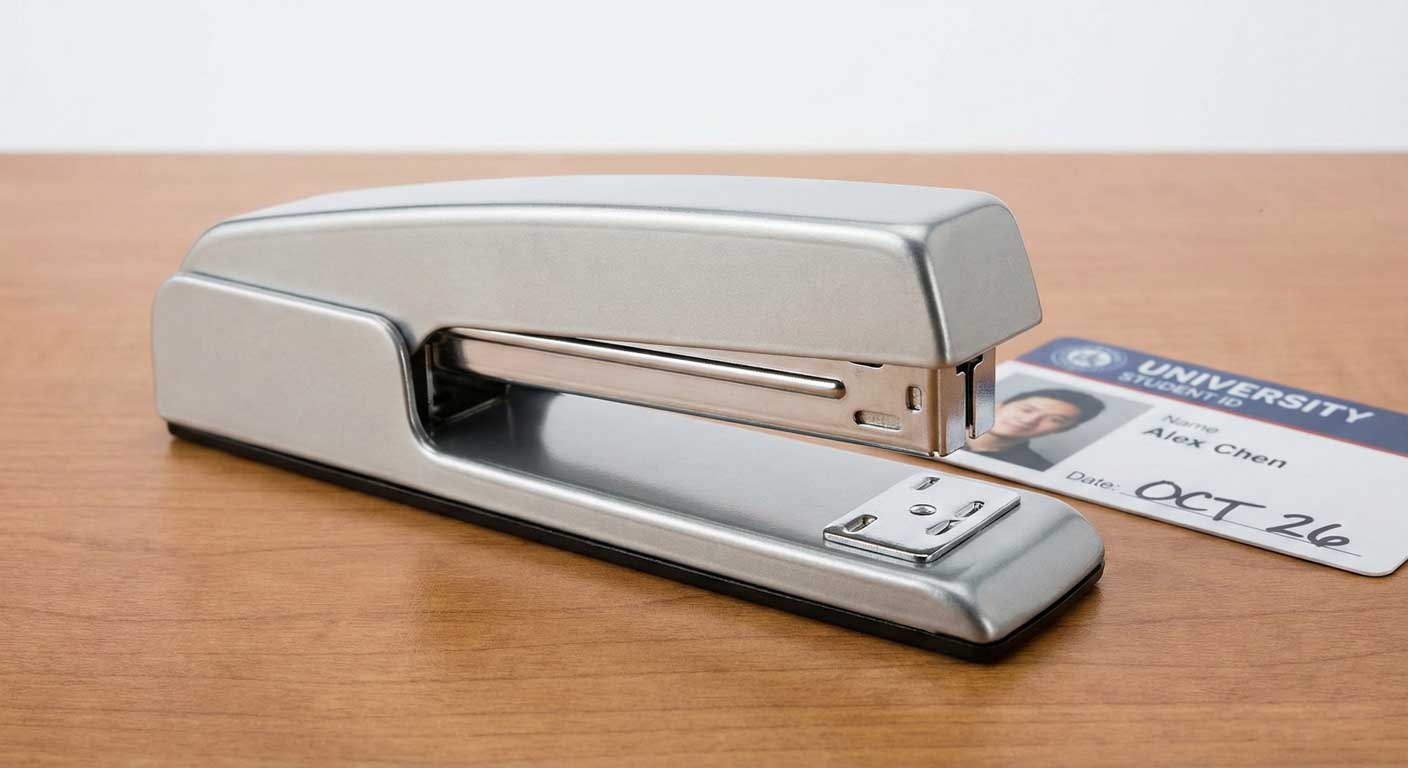
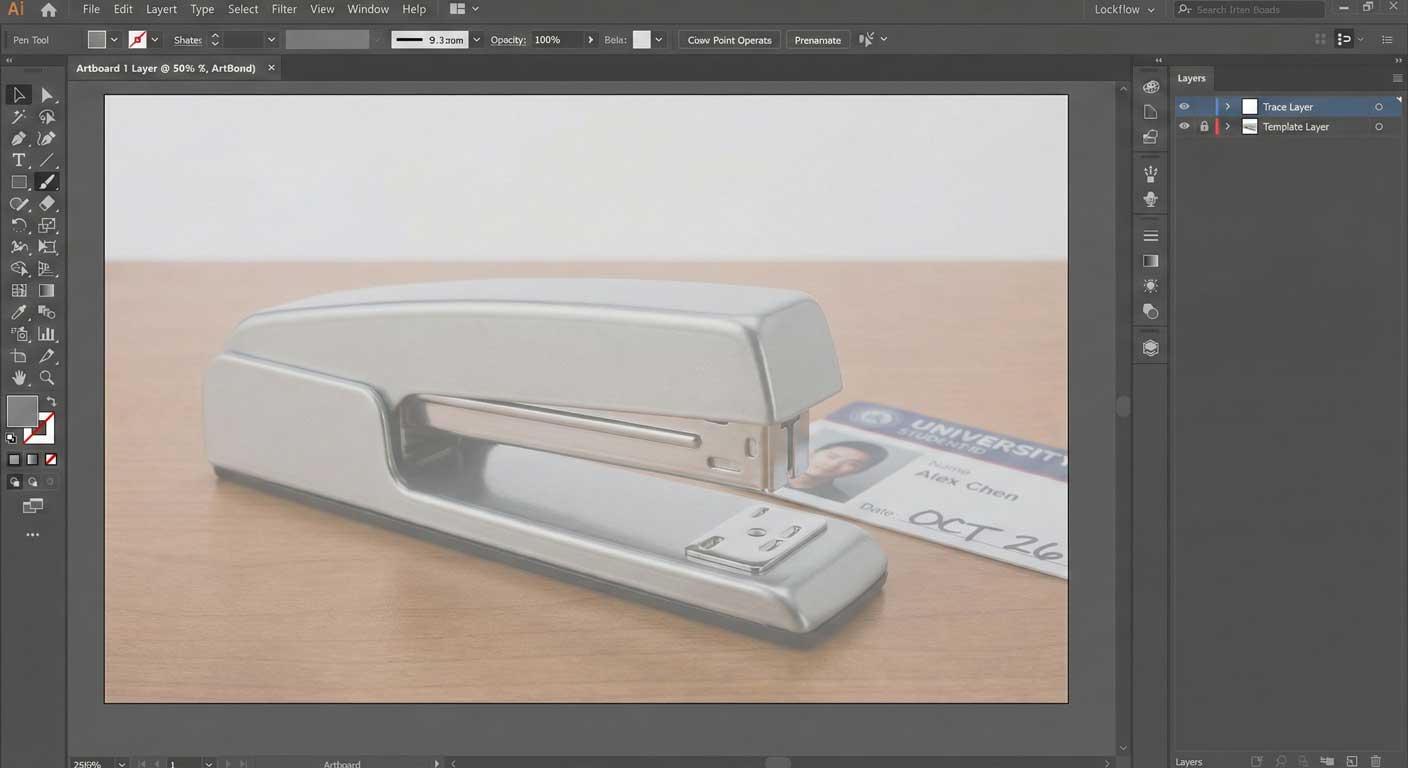
The Anti-AI Constraint: The source image cannot be generated. The student must take a high-contrast photograph of a physical object they hold in their hand, including a specific, unique background element (like their student ID or a handwritten date) visible in the process screenshots, though not the final art.
2. The Workflow
Phase 1: The Setup (Analog Work)
The student selects a somewhat complex object (e.g., a stapler, a game controller, a pair of distinct sneakers).
- Step A: Take a photo of the object straight-on (orthographic view).
- Step B: Take a photo of the object slightly "disassembled" or open (if possible), or from a 3/4 angle.
- Constraint: The photos must be high resolution. Students import these photos into Illustrator on a locked template layer.
Phase 2: The AI Assistant (Ideation & Copy Only)
We do want them to use AI, but only for the conceptual wrapper.
- Prompt Engineering Task: Students use ChatGPT or Claude to generate the "Brand Voice" and "Instructional Copy" for this object as if it were a futuristic or alien artifact.
- Example: A toaster described as a "Carbon-Based Nutrient Heating Array."
- Why this helps: It keeps them engaged with AI as a copywriter, not a designer.
Phase 3: The Vector Construction (The Manual Labor)
This is where the grading rubric tightens. The student must trace their photo using The 3-Point Rule:
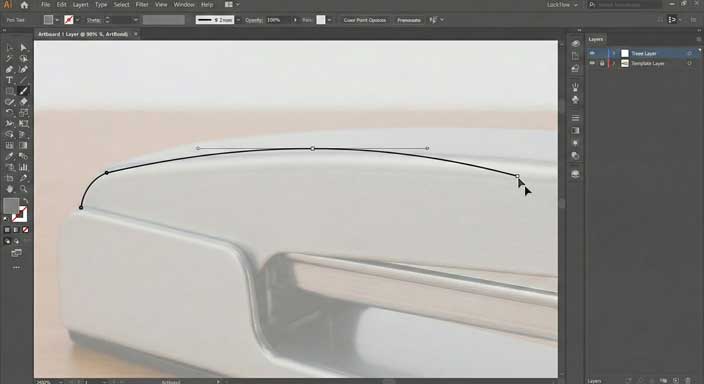
- The Constraint: No curve should be made with more anchor points than necessary. A perfect semi-circle should have 2-3 points, not 20.
- The Technique: They must manually trace the object using the Pen Tool.
- Outer Shell: Thick stroke (3pt).
- Inner Details: Medium stroke (1pt).
- Texture/details: Thin stroke (0.5pt) Professor's Note: "If you use Image Trace or Text-to-Vector, I will know immediately. AI creates hundreds of anchor points. I am grading you on Economy of Points. I want to see the fewest points possible to create a smooth curve."
3. The Deliverables (How we verify the work)
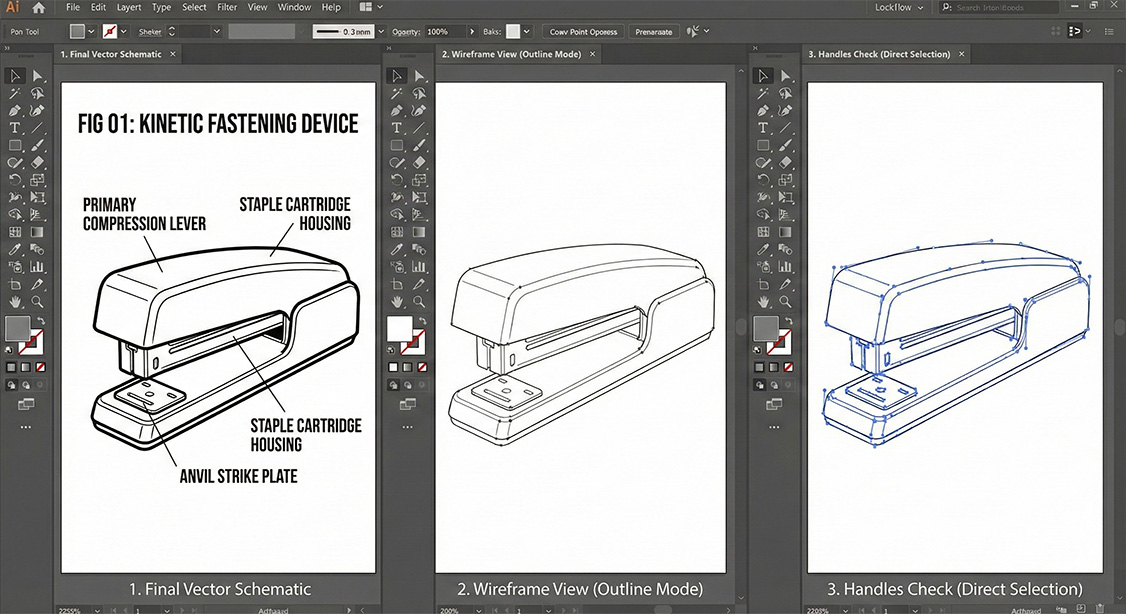
To ensure the student did the work, the submission requires three distinct artboards:
- The "Clean" Schematic: The final vector illustration with the AI-generated text laid out professionally.
- The "Wireframe" View: A screenshot of the design in Outline Mode (Command+Y / Ctrl+Y).
- Why: This exposes the "skeleton." If the lines are jagged, disconnected, or riddled with thousands of points, it was likely auto-generated.
- The "Handles" Check: A screenshot with the Direct Selection Tool (White Arrow) selecting the main curves, showing the handles of the Bézier curves.
- Why: Good human designers pull handles horizontally and vertically (orthogonally) where possible. AI handles are chaotic.
4. Assignment Sheet for Students
Project: The Vector Anatomy
Brief: You are hired to create a technical illustration for a user manual. You must take a photo of a real-world object and "digitize" it into a clean, scalable vector graphic.
Instructions:
- Capture: Photograph an object on your desk.
- Setup: Place photo in Illustrator. Dim opacity to 50%. Lock the layer.
- Trace: Use the Pen Tool (P).
- Click to create corners (straight lines).
- Click-and-Drag to create curves (Bézier).
- Stylize: Do not use fills. Use only Stroke (black). Use the Width Tool or stroke profiles to taper the ends of your lines for a professional look.
- AI Integration: Use a text LLM to rename your object and write 3 "features" pointing to specific parts of your drawing.
The "No-Go" List (Instant Fail):
- Using "Image Trace."
- Using "Text to Vector Graphic."
- Submitting a file with more than 50 anchor points on a simple curve.
5. Why This Works for Employability
This assignment mimics the workflow of:
- Logo Design: Cleaning up rough client sketches.
- Type Design: Creating custom lettering from hand drawings.
- Technical Illustration: Creating diagrams for manuals (IKEA style).
By forcing the student to trace a specific photo they took, AI cannot hallucinate the correct geometry because it cannot "see" the exact perspective of the student's photo with enough precision to match the requirement of a "clean wireframe.". Additionally, AI rendered vectors tend to have "impure curves" which is to say, they insert too many vertices instead of using the fewest amount possible. This makes it easy for the instructor to spot a fake.